No products in the cart.
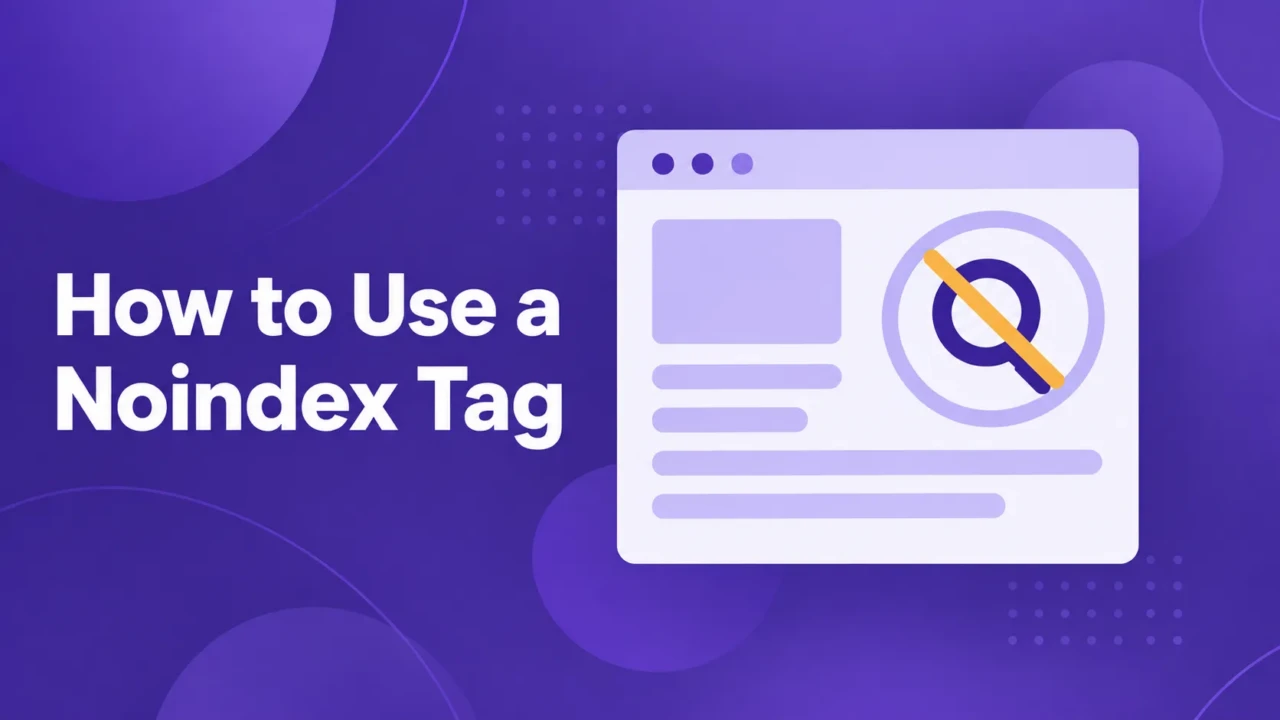
A noindex tag, also called a noindex directive, tells search engines not to include a page or file in their search results. It is useful when people may still need to access a URL, but the content does not need to be discoverable through search.
You can add noindex through an HTML meta tag, an HTTP response header, or a content management system setting. The right method depends on the type of resource you are managing and how your website is built.
When Should You Use a Noindex Tag?

Use noindex when people may still need to visit a page, but it doesn’t need to appear in Google or another search engine.
A form confirmation page is a common example. Someone who submits a form may need to see a confirmation message, but people searching for your business do not need to find that page on its own.
The same idea applies to internal search results. Visitors may need to search your site, but the temporary URL created for one search usually doesn’t need its own search listing. A campaign landing page shared through email, advertising, or a direct link may also be a candidate for noindex.
Noindex does not protect the page from visitors. Anyone with the URL can still open it, and another website may still link to it. If the content is confidential, use password protection or another access restriction.
Low traffic alone is not a reason to add noindex. A service page, guide, or product page may be valuable even if it does not rank well yet. In that situation, improving the page may be more appropriate than excluding it from search.
If people should be able to access a page but do not need to discover it through search, noindex may fit. If people should not be able to access it at all, use a different solution.
The decision depends on the page’s purpose, not simply whether it receives traffic.
Noindex vs. Other Ways to Control a URL
These methods solve different problems. Before changing a URL, decide whether people should still be able to access it, whether search engines should be able to crawl it, and whether it should appear in search results.
| Method | Main purpose | Can crawlers access it? | Is the content private? |
|---|---|---|---|
noindex | Keep a page out of search results | Usually yes | No |
robots.txt | Control crawler access | No, if disallowed | No |
| Password protection | Restrict access | No, without permission | Yes |
| Removing the page | Make the content unavailable | No | Usually |
Choose noindex when the page should remain publicly accessible but should not appear in search results.
Use robots.txt when the main concern is managing crawler access. Do not block a page in robots.txt when you expect Google to read a noindex directive. If crawlers cannot access the page, they may not see the instruction. Google’s technical requirements explain the difference between crawling and indexing.
Use password protection for client portals, private resources, or confidential information. Use removal or a redirect when the page no longer belongs on the website.
The same decision applies to other website resources: use access control for private content, and use a redirect when an outdated page should lead visitors to a current one.
How to Add Noindex to an HTML Page

For a standard HTML page, add this robots meta tag to the page output:
<meta name="robots" content="noindex">The directive is usually placed in the page’s <head> section. On a custom website, you may add it directly to an HTML file, a shared template, or application code that generates the page. For the full technical specification, see Google’s robots meta tag documentation.
The basic process is:
- Identify the URL that should be excluded.
- Add the directive to the page output.
- Publish the change to the live website.
- View the live source and confirm that the directive is present.
- Check that the URL is not blocked from crawling.
If the directive is added to a shared template, check which pages use that template before publishing. A change intended for one page could affect an entire group of URLs.
How to Use X-Robots-Tag for Files
Use an X-Robots-Tag response header when you need to control indexing for a resource that does not use HTML, such as a PDF, image, video, or other downloadable file.
X-Robots-Tag: noindexSend the header with the resource’s HTTP response. Adding text to the file itself will not create a noindex directive. Google’s robots meta tag documentation includes X-Robots-Tag examples for non-HTML resources.
This method is usually managed through hosting settings, server configuration, application code, or a deployment system. The exact implementation depends on the website’s infrastructure.
For example, a downloadable PDF may remain available to people who receive the link while staying out of search results. If you don’t manage the server or hosting setup, ask the developer or hosting provider to confirm where to add the header.
How to Add Noindex in a Content Management System
Many content management systems provide an indexing setting for individual pages, posts, products, archives, or other content types. The label may be “Search appearance”, “Indexing”, “Robots settings”, or something similar.
The general process is:
- Open the page or content item you want to exclude.
- Find the search, SEO, or robots settings.
- Set the item to noindex.
- Save or publish the change.
- Check the live page source to confirm the directive was applied.
The exact controls depend on the platform, theme, plugin, and site configuration. Avoid adding a second manual robots directive unless you understand how it interacts with the platform’s existing settings.
Pay attention to scope. A setting for one page is different from a setting for an entire content type, product category, archive, or collection. If you only want to exclude one campaign page, confirm that you are not changing the indexing setting for every page in that group.
The platform’s editor is not the final proof that the directive is working. Verify the published URL.
Why a Noindex Tag May Not Produce the Result You Expect
A noindex directive can be technically correct and still produce an unexpected result if it is added at the wrong level, blocked from being read, or expected to work immediately.
The page is blocked in robots.txt
If robots.txt prevents crawlers from accessing the URL, search engines may not be able to read the noindex directive. If your goal is to keep the page out of search results, the URL generally needs to remain crawlable.
The setting affects more pages than intended
A platform setting may apply to one page, an entire content type, or a group of archives. If several pages disappear from search after one change, review the setting’s scope before making additional edits.
The page was already indexed
Adding noindex does not guarantee immediate removal. Google needs to crawl the page again, process the directive, and update its search results.
Noindex is being used to avoid improving a valuable page
A low-traffic page may still support an important service, answer a customer question, or help visitors navigate the site. Before adding noindex, decide whether the page needs better content, a clearer purpose, consolidation with another page, or a redirect.
Most noindex problems come from a mismatch between the intended page and the setting that was actually changed. Start by checking the live URL, the source code, and the scope of the platform setting.
How to Check Whether Noindex Is Working

You can verify that the directive was added before you know whether Google has processed it.
Check the live page
Open the published page and view its source code. Search for noindex. If the page uses an HTML robots meta tag, you should find a line similar to this:
<meta name="robots" content="noindex">Check the live page, not just the platform editor or development site. The directive must appear in the version search engines can access.
Check the file response
For a PDF or another non-HTML resource, inspect the HTTP response headers and look for:
X-Robots-Tag: noindexThis confirms that the server is sending the instruction with the file.
Check crawler access and search status
Confirm that the URL is not blocked in robots.txt. A blocked URL may prevent search engines from reading the noindex directive.
If you manage the website in Google Search Console, use Search Console’s URL Inspection tool to review the page’s indexing information and request a new crawl when appropriate.
Finding the directive in the source proves that the website is sending the instruction. It does not prove that Google has already removed the page from its search results. Technical verification and search-result verification are separate steps.
How Long Does Noindex Take?
A page with a noindex directive can remain accessible through its URL. People may still visit it directly, and search engines may continue to crawl it while they process the instruction.
If the page already appears in search results, it may remain there until Google crawls the URL again and updates its index. Google does not provide a guaranteed removal timeline.
If you need a page removed quickly from Google Search, Google’s removal tool can provide a temporary removal. That tool is separate from noindex and should not replace the longer-term solution that fits the page’s purpose. Google’s page removal guidance explains how temporary removals differ from permanent changes.
After adding noindex, check the live page first to confirm that the directive is present. Then use Google Search Console to monitor when Google processes the change.
Frequently Asked Questions
These questions address common concerns about timing, privacy, files, and low-performing pages.
No. Google needs to crawl the page and process the directive before removing it from search results. The timing depends on when Google revisits the URL and updates its index.
No. A noindex page may still be accessible to anyone with the URL. Use password protection or another access-control method when you need to restrict content.
Yes. PDFs do not use HTML meta tags, so use an X-Robots-Tag: noindex response header instead. This usually requires access to your hosting or server configuration.
Not necessarily. Low traffic or weak rankings do not automatically mean a page should be excluded from search. Review the page’s purpose and decide whether to improve it, combine it with another page, redirect it, or remove it.
No. Noindex controls whether the page appears in search results. It does not automatically prevent search engines from discovering or evaluating links on the page. Use a separate nofollow directive only when there is a specific reason to limit how links are followed.
Summary

Start by asking what should happen when someone has the page’s URL.
If the page should remain publicly accessible but not appear in search, use noindex. If the content should be available only to approved users, use password protection. If the page no longer belongs on the site, remove it or redirect it to the most relevant current page.
Then check how search engines should interact with the URL. A noindex page generally needs to remain crawlable so search engines can read the directive. A page blocked in robots.txt may prevent them from seeing it.
Identify one affected URL, choose the control that matches its purpose, and verify the live result after making the change.
Work With TCB Studio
I offer technical SEO services for businesses that need help reviewing indexing directives, resolving website issues, or improving how search engines access and interpret their pages and files. You can hire me for focused hourly work or ongoing monthly support, depending on the project’s size and complexity.
Before getting started, gather the affected URLs, why each should remain out of search, and details about your platform or hosting setup. That information helps define the right scope.