No products in the cart.

User interface, often shortened to UI, comes up often in conversations about websites, apps, software tools, and digital platforms. But the term is often used loosely, making it harder to understand what UI actually includes.
If you’re building a website, launching a product, or improving a digital workflow, UI matters because it shapes what people see, understand, and do. This article explains what UI is, how it works, how it relates to UX, and why it matters for businesses and creators.
What Is UI?
The User interface (UI) is the visual and interactive layer of a digital product that enables a person to interact with it. It includes everything the user sees and uses, such as buttons, menus, forms, navigation, layout, typography, and visual feedback.
UI is how a system presents its functionality and responds to user actions. It translates underlying processes into actions people can understand, like clicking, typing, selecting, or navigating.

Every interaction with a digital product happens through the UI. Clicking a button, scrolling a page, submitting a form, or opening a menu all trigger something behind the scenes.
As a result, UI directly affects how easy or difficult a product feels to use. When well-designed, interactions feel obvious and controlled. When it is not, users hesitate or abandon the task.
What UI Includes
UI is not just about how something looks. It includes both the product’s visual design and how users interact with it.
At a surface level, people think of UI as colors, fonts, and layout. Those matter because they support interaction. A button is not just visual. It signals that something can be clicked and what happens next.
Common UI elements include:
- Buttons
- Navigation menus
- Forms and input fields
- Icons
- Typography
- Color systems
- Layout and spacing
- Feedback states such as hover, loading, and error messages
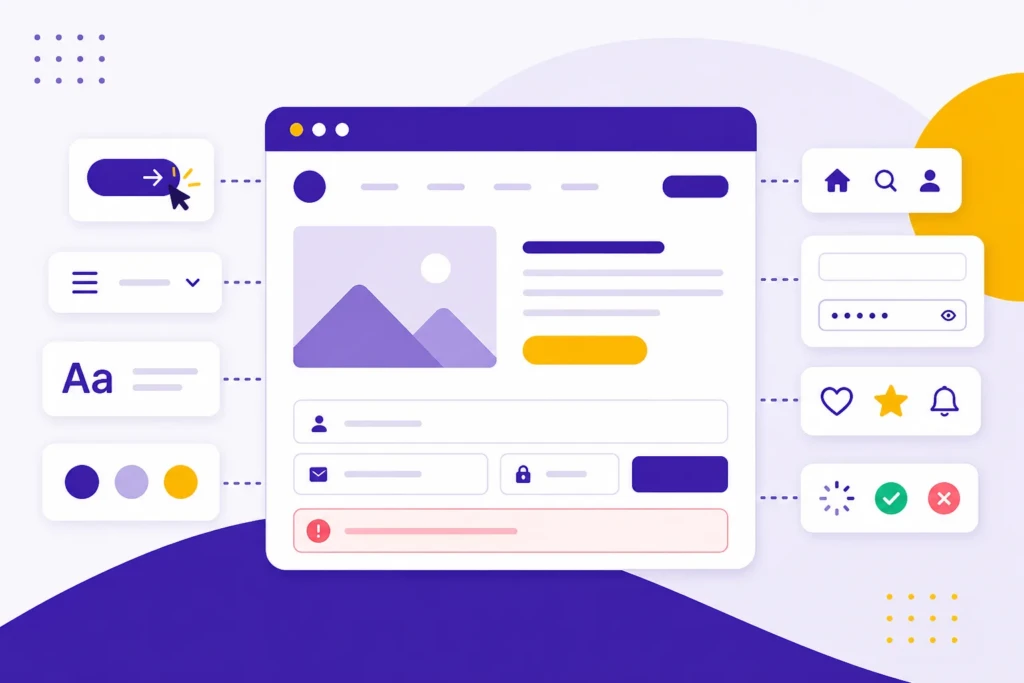
What matters is not the elements themselves, but how they are combined to create a clear path.
For example, a checkout page is not just fields and buttons. It is a flow that moves the user from entering information to completing a purchase. Layout, field order, button labels, and error messages all work together to keep that process moving.
When those pieces are aligned, the experience feels straightforward. When they are not, users hesitate or leave.
UI works best when it is treated as a system, not a collection of parts. The goal is to make the next action obvious at every step.
UI vs UX
UI is often confused with UX, or user experience. They are closely related, but they solve different problems.
- UI focuses on the interface itself. It concerns what users see and how they interact with it.
- UX focuses on the overall experience of using the product, including how easy it is to complete a task and how the process feels from start to finish.
A simple way to separate the two is this: UI is the surface, UX is the journey. Here’s an overview table to help clarify:
| Concept | Focus | Example |
|---|---|---|
| UI | Visual and interactive elements | Button styles, layout, colors |
| UX | Overall experience and flow | How easy it is to complete a task |
Where people get tripped up is assuming that a clean interface automatically means a good experience. In reality, a product can look polished and still be frustrating to use.
Take a basic form. The UI might be clean, well-spaced, and visually consistent. But if the form asks for information in the wrong order, requires unnecessary steps, or fails to guide the user clearly, the experience breaks down.
That is a UX problem, even if the UI looks good.
On the other side, strong UI actively supports good UX. When buttons are clearly labeled, layouts follow predictable patterns, and feedback is immediate, users can move through a process without second-guessing themselves.
In practice, UI and UX are not separate layers that you can isolate. They work together. UI shapes how each step feels, and UX determines whether those steps make sense as a whole.
How UI Works in Practice
UI works by translating system functionality into something people can understand and control.
Behind every interface is a system performing actions such as processing data, retrieving information, or triggering events. The UI exposes those actions through simple interactions like clicking, typing, selecting, or scrolling.
When someone clicks a “Submit” button, they are not thinking about servers or data processing. They are responding to a clear signal that says, “This is how you move forward.” The UI turns something complex into a simple step.
Most interfaces rely on familiar interaction patterns to make this work. Users already understand how to click a button, scroll a page, or open a menu, so the interface does not need to teach those.
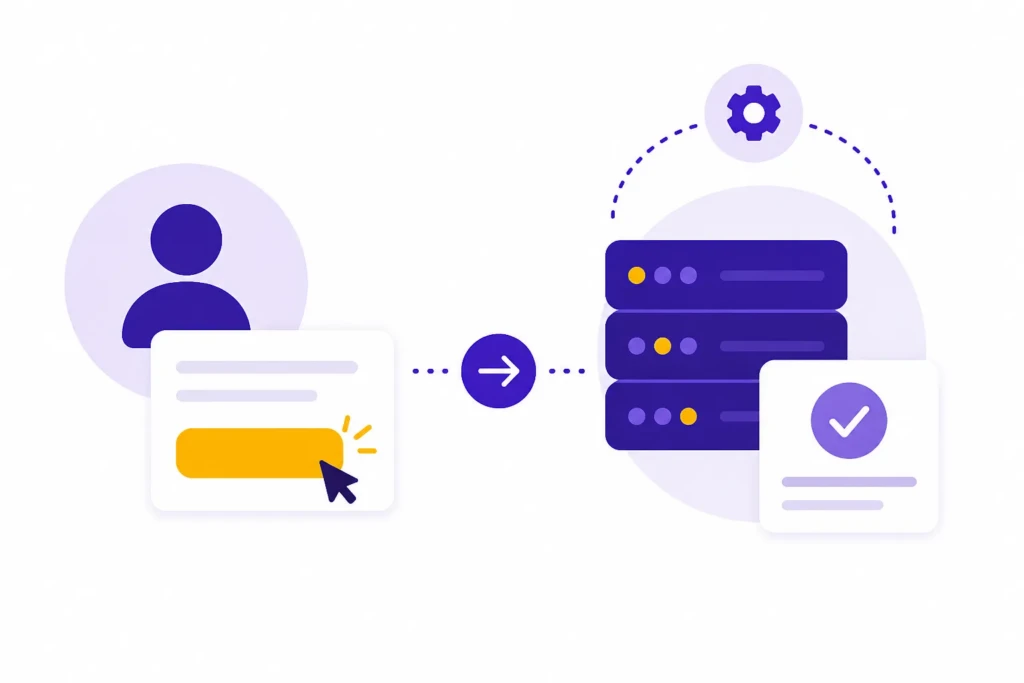
For example, a search bar returns results, a dropdown reveals options, and a loading spinner signals that something is happening. These patterns reduce friction and make the product feel intuitive.
UI also uses visual structure to guide attention. Elements are not placed randomly. Size, position, color, and spacing all signal importance.
A larger headline draws focus first. A high-contrast button signals the primary action. Spacing separates sections, making content easier to scan.
When this is done well, users move through the interface without thinking about it. When it is not, they hesitate or choose the wrong path.
Effective UI combines familiar interaction patterns with a clear visual hierarchy so users know both how to act and where to act.
Types of User Interfaces
UI is not limited to websites or apps. It exists anywhere a person interacts with a system.
Most modern interfaces fall into a few categories:
- Graphical user interfaces (GUI) used in websites and apps
- Voice interfaces used in assistants like Siri
- Command-line interfaces used by developers
- Touch interfaces used on mobile devices and tablets
- Gesture-based interfaces used in more advanced systems
Each of these gives users a way to control a system without needing to understand its internal workings.
For example, command-line interfaces rely on typed commands and are efficient for experienced users, while graphical interfaces replace those commands with buttons, menus, and visual cues that are easier to understand.
For most small businesses and creators, the focus is on graphical interfaces. That means websites, dashboards, and mobile layouts where UI decisions directly affect how customers interact with your business.
In practice, this comes down to clear layouts, predictable interactions, and simple paths to action.
Why UI Matters
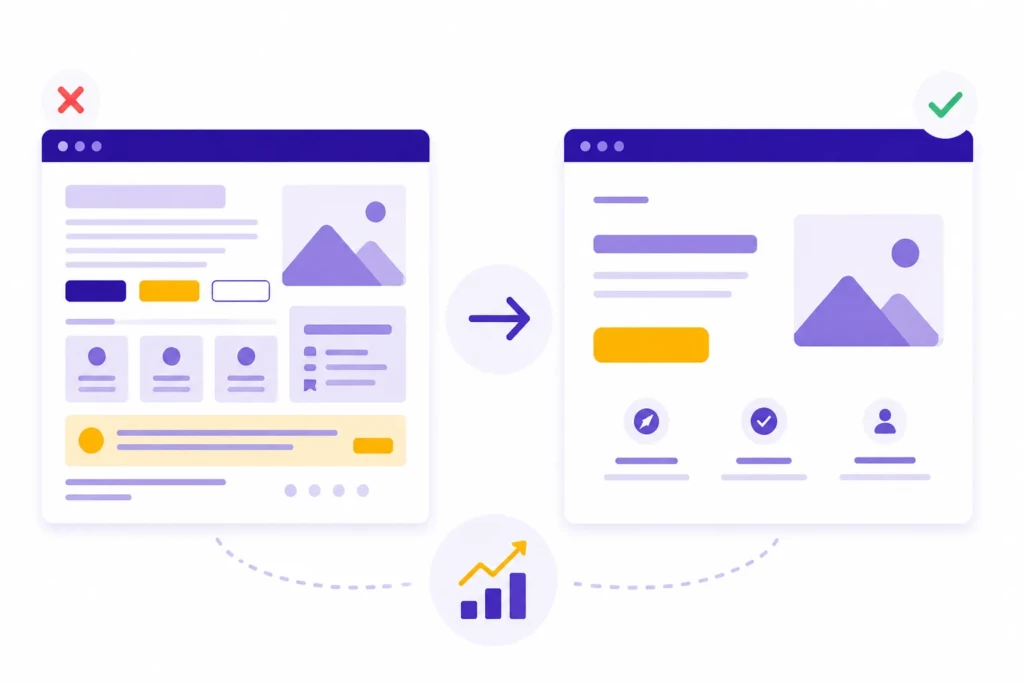
UI shapes how people perceive and use your product.
Even if the underlying system is strong, the interface determines whether that value is accessible. Most users are not evaluating your technology. They are reacting to what they see and how easily they can move through it.
That means UI affects whether someone stays on your site, understands your offering, and takes action.
First impressions happen quickly. If a layout feels cluttered or hard to follow, users often leave before engaging. UI also affects usability at a practical level. Every task, whether reading, submitting a form, or making a purchase, depends on how clearly the interface guides the user.
There is also a strong connection between UI and trust. Clean, consistent interfaces tend to feel more reliable. Inconsistent spacing, unclear buttons, or broken interactions can make a business feel unpolished.
UI also impacts results. Small decisions around layout, button placement, and form structure can influence how many people complete a process.
UI is often underestimated because it does not feel strategic. But it quietly affects almost every measurable outcome on a site.
UI and SEO
UI does not directly influence search rankings in the same way that content, backlinks, or technical SEO do. But it plays a critical role in how users behave once they land on your site, and that behavior affects overall performance.
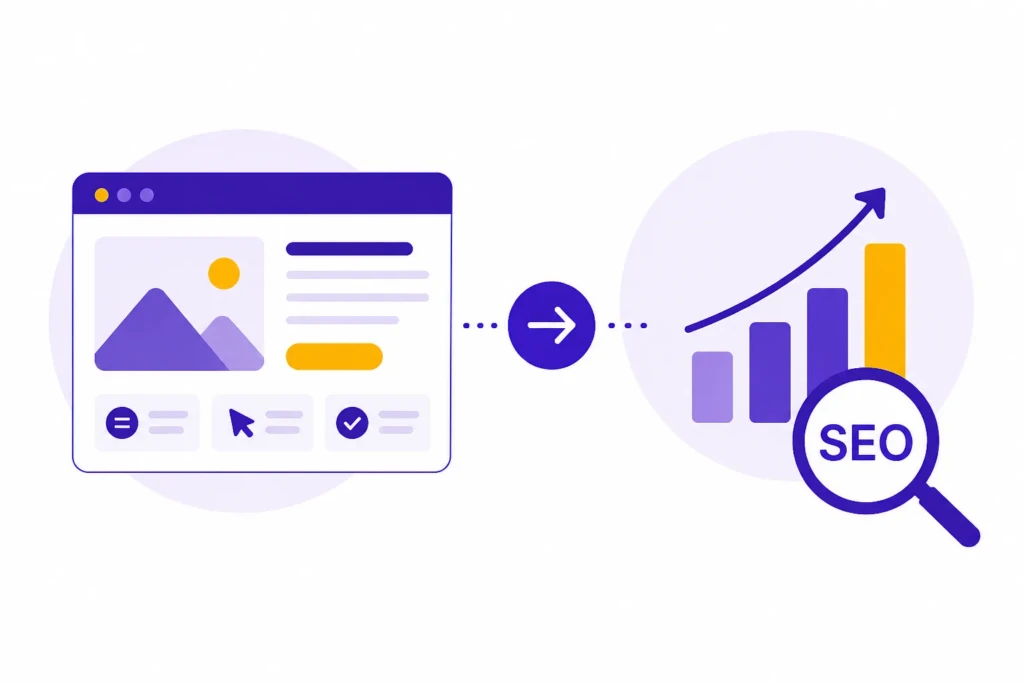
Search engines aim to determine whether a page satisfies user intent. UI affects how easily someone can navigate, understand, and act on what they find. If the interface gets in the way, even strong content can underperform.
A clear interface helps users engage with your site. When navigation is obvious and layouts are easy to scan, people are more likely to stay, explore, and take action.
Poor UI does the opposite. If users struggle to find information or feel uncertain about what to do next, they tend to leave quickly. Over time, that drop in engagement works against your SEO efforts.
What This Means for Small Businesses
If you are investing in SEO, UI should not be treated as a separate concern.
Content brings users in, but UI determines whether that traffic turns into results. A strong page can still fail if the layout is confusing or the path to action is unclear.
In practice, a good UI supports SEO by helping users stay engaged, navigate your site, and complete key actions.
The takeaway is simple. SEO gets attention. UI makes that attention useful.
Common UI Mistakes
Many UI problems come from trying to do too much without a clear structure.
Small business sites often accumulate elements over time. New sections get added, calls to action stack up, and design decisions are made in isolation. The result is an interface that has everything it needs but does not clearly guide the user.
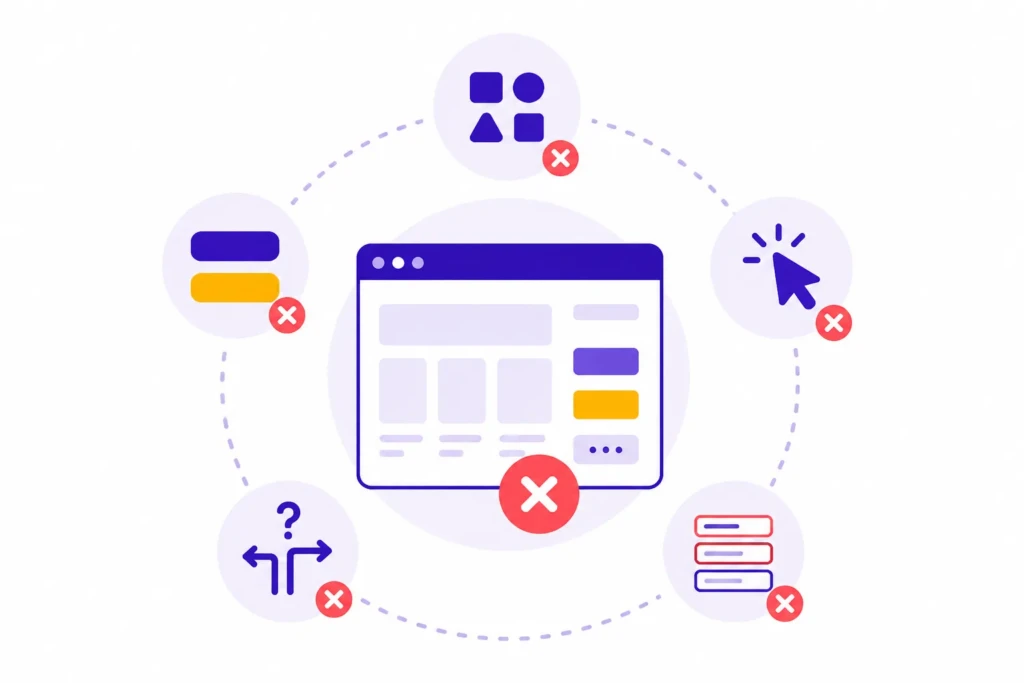
Overcrowding is one of the most common issues. When too many elements compete for attention, users do not know where to look or what to do first.
Inconsistency creates a similar problem. When buttons, spacing, or layouts change without reason, the interface starts to feel unreliable.
Navigation is another weak point. If users have to think about where to click next, the interface is already creating friction. The same applies to forms that ask for too much information or fail to guide users clearly.
Across all of these issues, the pattern is simple. The interface is not making the next step obvious.
What Good UI Looks Like
Good UI reduces uncertainty. A strong interface makes it clear where the user is, what actions are available, and what will happen next. Users should be able to recognize what to do without having to interpret the design.
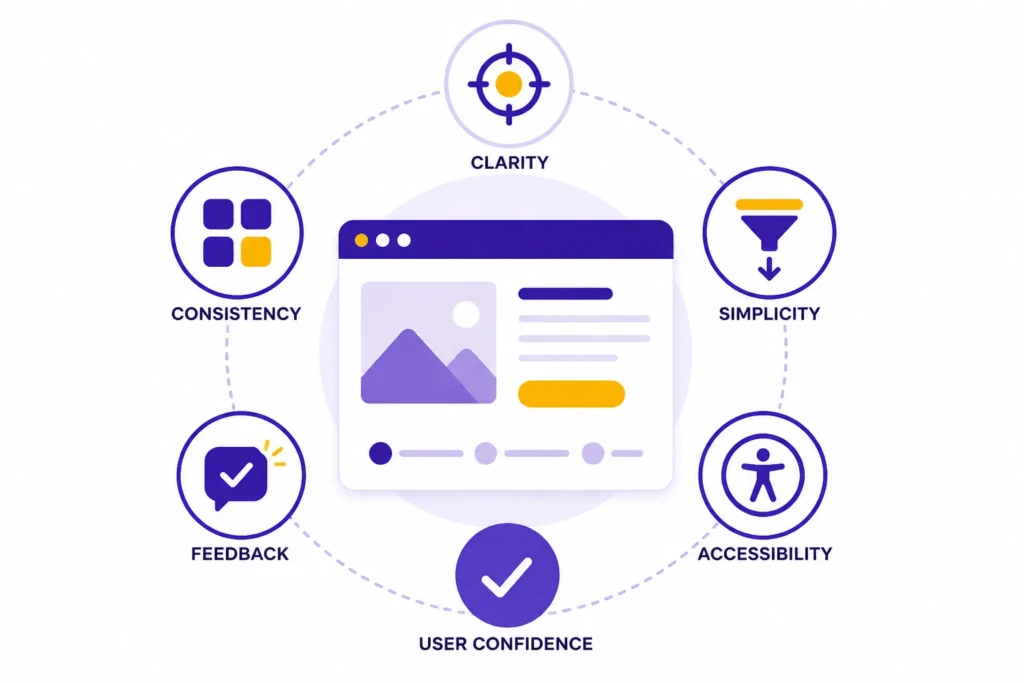
Clarity is the foundation. Consistency reinforces it. When elements behave consistently across the site, users stop questioning interactions and focus on their goal.
Simplicity keeps the interface manageable. This does not mean removing everything. It means removing what does not support the task.
Feedback is also critical. When users take an action, the interface should respond immediately so they know the system is working.
Accessibility supports all of this by ensuring the interface works for more people. Readable text, clear contrast, and logical navigation directly affect usability.
When these pieces are in place, the interface fades into the background, and the task becomes the focus.
UI Tools and Systems
Most modern UI is not built from scratch each time. It relies on tools and simple systems to stay consistent.
Design tools like Figma and Sketch are used to plan layouts and interactions before anything is built. They help teams test ideas without changing live code.

More important than the tools is the system behind them.
A design system is a set of shared rules and reusable components that define how an interface is built. Instead of designing each page independently, teams rely on consistent patterns for buttons, spacing, and typography.
This keeps the interface predictable and easier to scale.
For small businesses, this does not need to be complex. Even a basic standard, such as one button style, consistent spacing, and a repeatable layout, can prevent many UI issues.
When UI Becomes a Problem
UI issues rarely show up as design problems. They show up as business problems.
If users are not taking action, getting confused, or dropping off early, the interface is often to blame.
A low conversion rate is not always a messaging issue. It can come from unclear calls to action, overwhelming layouts, or friction in forms. If users frequently ask how to navigate your site, the interface is not guiding them clearly.
These issues are easy to misdiagnose because they appear in metrics rather than in the design itself.
When users struggle to complete basic tasks, the UI isn’t doing enough to support them.
Improving Your UI
Improving UI does not always require a full redesign. The biggest gains often come from simplifying what already exists.
Start with the pages that drive results, such as your homepage, service pages, product pages, and key forms.
Focus on reducing friction. Look at each section and ask whether it helps the user move forward or slows them down.
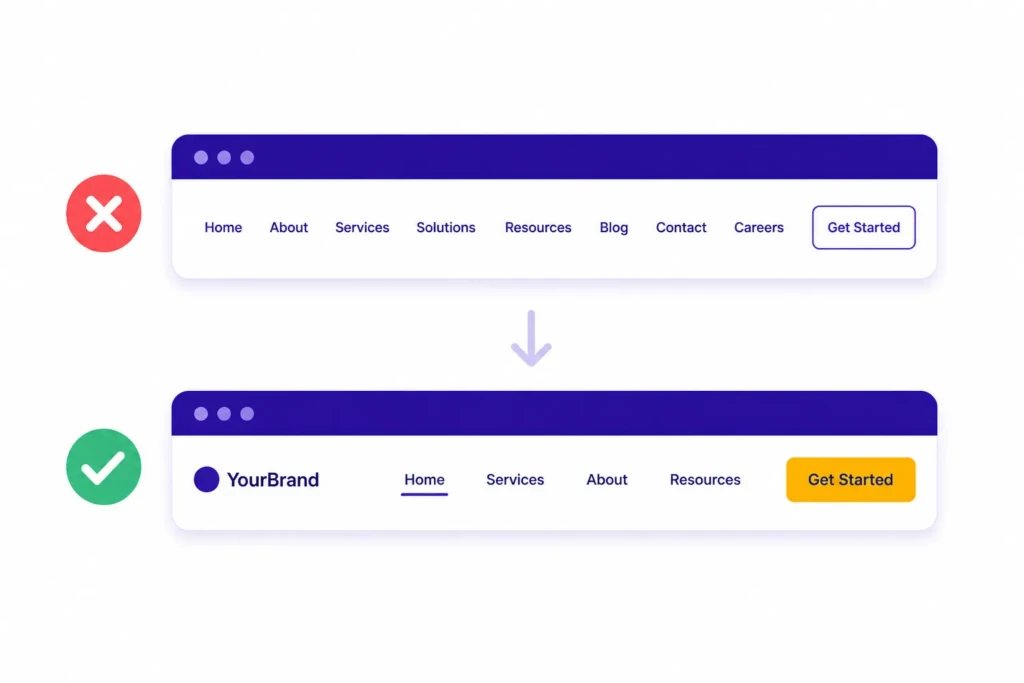
Navigation should feel obvious. Users should know where they are and where to go next without having to think about it. If not, the structure likely needs simplification.
Calls to action should be clear and easy to find. When multiple actions compete, users often choose none of them. A single clear next step works better.
It also helps to observe how people use your site. Even basic feedback or session recordings can reveal where users hesitate.
The goal is not to make the interface more impressive. It is to make it easier to use.
Putting This Into Practice
UI is not just a design concern. It is part of how your business communicates online.
A clear, consistent interface helps people understand your offer, navigate your content, and take action without unnecessary friction. That matters whether you are publishing articles, selling digital products, booking consultations, or building a full web app.
When improving a website or digital system, UI should be considered alongside SEO, content, performance, and technical setup. These pieces work together. Search can bring people to the page, content can explain the value, and UI can help users move confidently toward the next step.
For small businesses and creators, the most useful shift is to stop treating UI as surface-level design. Look at it as a practical system that shapes how people experience your work. Better layouts, clearer navigation, stronger calls to action, and simpler flows can make the rest of your digital strategy more effective.
Learn More About UI
If you want to go deeper, there are a few well-established resources that cover UI design in more detail:
- Nielsen Norman Group: A leading authority on usability and user experience, with research-backed articles on UI patterns, interaction design, and usability principles
- Interaction Design Foundation: Structured courses and beginner-friendly explanations covering UI, UX, and design fundamentals
- Google Material Design: A widely used design system with clear guidelines on layout, components, accessibility, and interaction patterns
These resources can help you build a deeper understanding of how interfaces are designed and how they function in real-world products.
Getting Help With UI
With TCB Studio, I help businesses improve SEO, AI workflows, web development, and digital systems so their tools are easier to find, use, and act on. If your website or digital workflow feels harder to use than it should, UI is a good place to look. The goal is not to make things more complicated, but to make the next step clearer. If you need help with your business and projects, check out my services to help improve your UI and user satisfaction.