No products in the cart.
How to Grant Access to Squarespace
If you’re working with a website developer, SEO consultant, or marketing professional, they may need access to your Squarespace website to make updates, troubleshoot issues, or improve your site’s performance.
This guide explains how to add a contributor in Squarespace and which permission level is appropriate for different types of work.
How to Add a Contributor in Squarespace
Log in to your Squarespace account and navigate to your account dashboard.
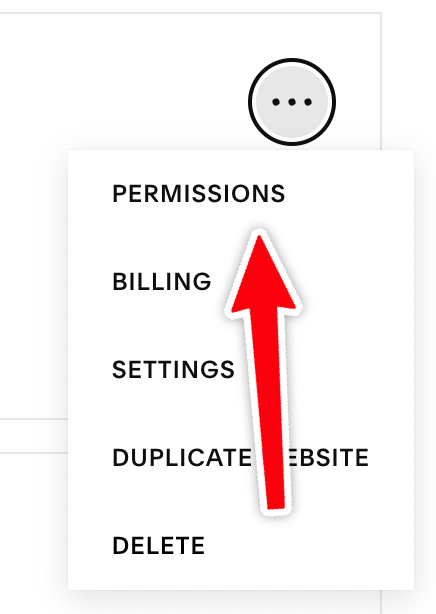
Open the website you want to share access to and click the three dots on the right.

Click those and select Permissions.
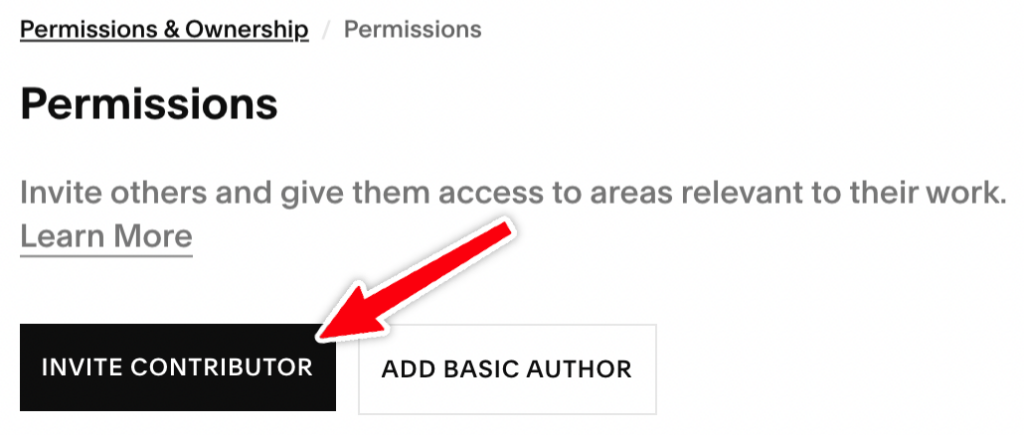
On the Permissions page, click the Invite Contributor button.
Clicking this should open a new sign-in window.
Re-sign in to Squarespace to authorize the permission changes.
Once re-authorized, you should see an Invite Contributor screen.
Add the contributor’s name and email address.
Set the contributor’s access levels. For most purposes, Administrator or Web Editor should be used if providing website management access. More on that below…
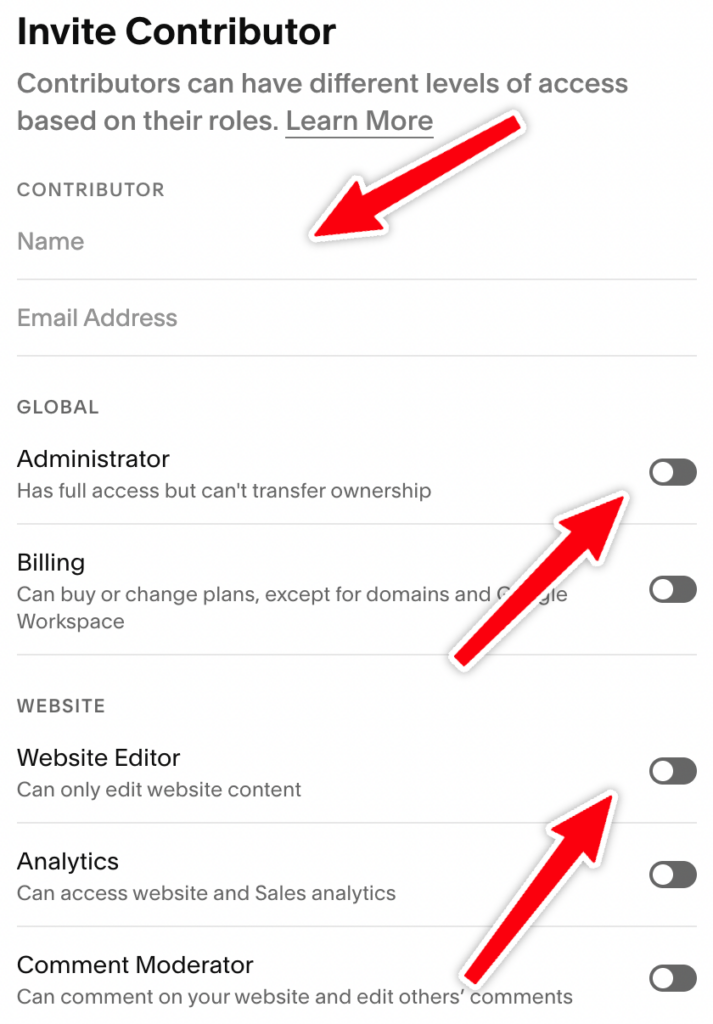
Once everything is set, click the Invite button.

This should send an email to the contributor, granting them access!
Understanding Squarespace Permission Levels
Squarespace provides several permission levels. The right choice depends on the type of work being performed. Here’s their official video for an overview:
Permission Levels Overview
| Permission Level | Recommended Use | What They Can Do | Limitations |
|---|---|---|---|
| Owner | Website owner only | Full access to all website settings, content, billing, domains, integrations, and permissions. Can transfer ownership. | Only one Owner account per website. |
| Administrator | SEO consultants, developers, web professionals | Nearly all Owner permissions, including SEO settings, redirects, domains, integrations, analytics, code injection, and site settings. | Cannot transfer site ownership. |
| Website Editor | Content writers and staff making routine updates | Edit existing page content, products, blocks, blog posts, and certain site content. | Cannot access many technical settings, SEO settings, redirects, domains, integrations, or advanced configuration options. |
| Billing | Accounting or finance staff | View invoices, manage subscriptions, and billing settings. | Cannot edit website content or settings. |
| Analytics | Marketing team members who only need reporting access | View website and commerce analytics. | Cannot edit website content or settings. |
| Store Manager | Ecommerce managers | Manage products, orders, inventory, customers, and some commerce-related content. | Limited access to broader website and technical settings. |
| Email Campaigns Editor | Email marketing staff | Create, edit, send, and monitor Squarespace Email Campaigns. | Cannot manage subscription billing or website settings. |
| Comment Moderator | Blog moderators | Moderate blog comments and receive comment notifications. | No website management access. |
| Viewer | Internal reviewers or stakeholders | View private or password-protected areas of the site. | Cannot edit content or settings. |
| Scheduling Administrator | Acuity Scheduling managers | Full access to scheduling calendars and appointment settings. | Scheduling only. |
| Scheduling View & Edit | Team members managing appointments | View and edit assigned calendars. | Limited to assigned scheduling resources. |
| Scheduling View Only | Staff who need calendar visibility | View assigned calendars. | Cannot make changes. |
Why Administrator Access Is Recommended for SEO
For most SEO, technical, analytics, and website support projects, Administrator access is strongly recommended.
While Website Editor access is suitable for basic content updates, it does not provide access to many of the settings required for technical SEO, analytics configuration, redirects, integrations, and troubleshooting.
| SEO Task | Website Editor | Administrator |
|---|---|---|
| Edit page content | ✅ | ✅ |
| Edit title tags | ❌ | ✅ |
| Edit meta descriptions | ❌ | ✅ |
| Manage redirects | ❌ | ✅ |
| Connect Google Search Console | ❌ | ✅ |
| Configure Google Analytics | ❌ | ✅ |
| Verify tracking installations | ❌ | ✅ |
| Access site-wide SEO settings | ❌ | ✅ |
| Access code injection | ❌ | ✅ |
| Manage domains | ❌ | ✅ |
| Troubleshoot indexing issues | ❌ | ✅ |
| Perform full technical SEO audits | ❌ | ✅ |
If worried about broad permissions, Administrator access can always be granted temporarily and removed once work is complete.
Recommended Access Level
Follow these recommended permission settings if you need additional guidance choosing access levels.
| Service | Recommended Permission |
|---|---|
| Content updates | Website Editor |
| Blog management | Website Editor |
| Design changes | Website Editor or Administrator |
| SEO audits | Administrator |
| Technical SEO | Administrator |
| Analytics setup | Administrator |
| Website troubleshooting | Administrator |
| Site migrations | Administrator |
Need Help?
If you’re unsure which permission level to grant, contact your website consultant before sending the invitation. They can advise which level of access is required based on the work being performed.