No products in the cart.
OBS Studio is one of the most popular free tools for recording video and streaming live content. It’s powerful, flexible, and widely used, but if you’re coming from simple screen recorders, it can feel overwhelming. OBS is built to give you control over how your video is composed, which is both its biggest strength and learning curve.
This guide breaks down OBS in plain terms. You’ll learn what OBS Studio is, who it’s best for, and how it works at a fundamental level. From there, it covers the pros and cons, practical software alternatives, safety, and trusted download sources. It wraps up with tips on getting started and an overview of accessories and plugins that make OBS easier to use in real-world setups.
What is OBS Studio?
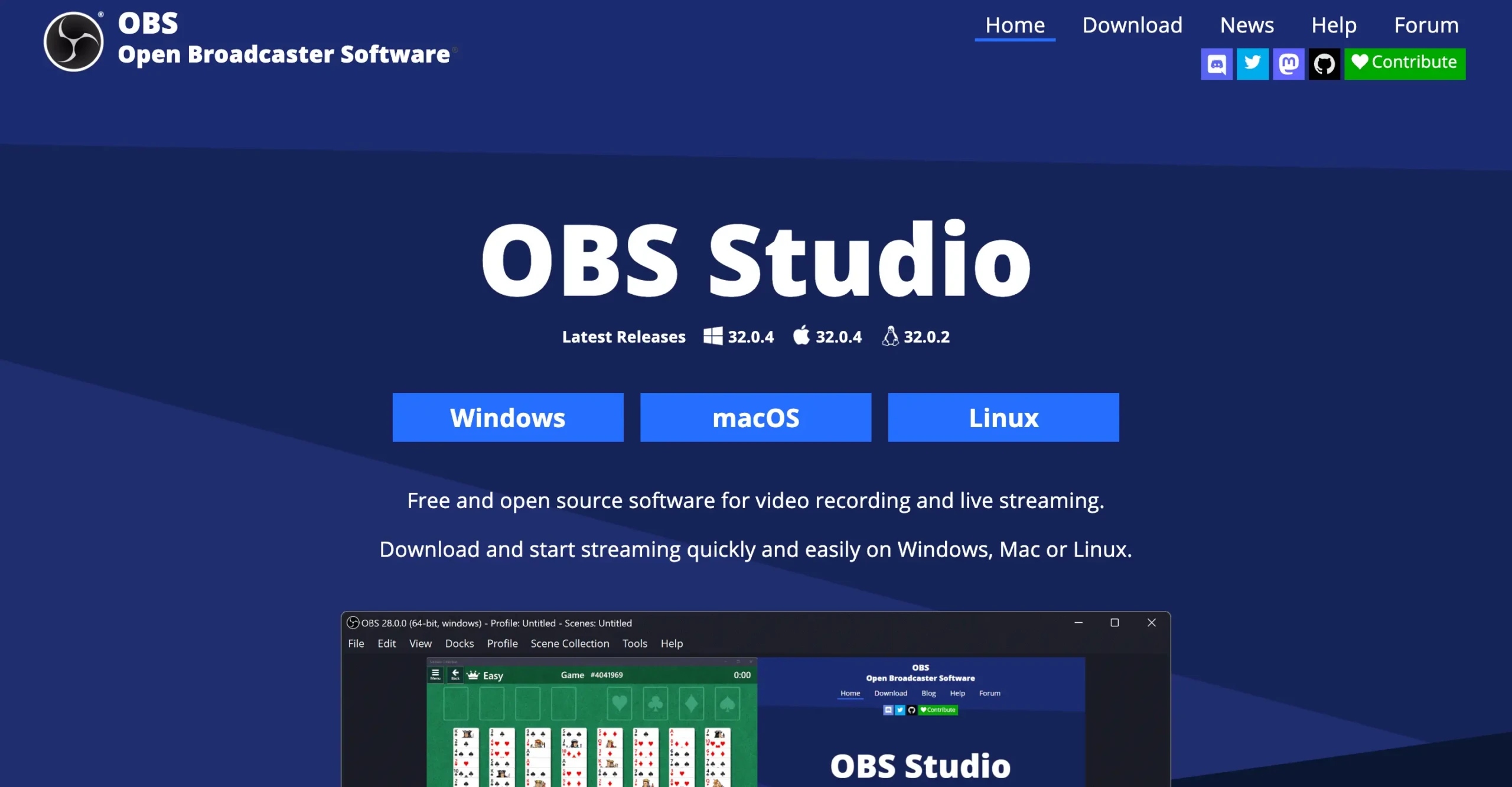
OBS Studio (short for Open Broadcaster Software) is free, open-source software used for recording video and streaming live content. The software lets you capture video from multiple inputs, such as your screen, camera, microphone, apps, images, and audio, and combine them into one video output.
Unlike basic screen recorders that capture what’s on your display, OBS acts more like a video production switchboard. You decide what appears on screen, where it appears, and when it changes. With it, you can create polished screen recordings and live streams that feel professional and intentional.
OBS supports local recording (saving video files directly to your computer) and live streaming to platforms like YouTube and Twitch. You can do either one independently or both at the same time.
Who Uses OBS Studio?
OBS Studio is used by a wide range of people who need more control than basic recording tools provide. These typically include:
- Streamers: The most visible and historically important OBS users. These are people broadcasting live to platforms like Twitch and YouTube who need to combine multiple elements into a single frame. Gameplay, webcam footage, chat overlays, alerts, music, and microphone audio all have to work together in real time. OBS gives streamers precise control over layout and timing, allowing them to switch scenes instantly, for example, moving from gameplay to a full-screen camera view or a “starting soon” screen, without interrupting the stream.
- YouTubers and other content creators: Primarily used for recording rather than live broadcasting. It’s especially popular with creators who alternate between talking to the camera and showing on-screen content, such as tutorials, commentary, or reaction videos.
- Professionals and teams use OBS for software demos, product walkthroughs, internal presentations, and webinars. Compared to basic screen-sharing tools, OBS offers far more control over what viewers see. Being able to show your face alongside a live demo, presentation slides, or application window makes explanations clearer and keeps audiences more engaged. For remote-first teams, OBS often fills the gap between casual screen sharing and expensive enterprise broadcasting tools.
- Teachers, trainers, and educators rely on OBS for lecture capture and course content. It’s particularly useful when lessons require switching between slides, live demonstrations, and camera footage. OBS allows educators to create structured, repeatable lesson formats without needing specialized recording software or institutional budgets. This makes it popular among independent course creators as well as instructors supplementing live or asynchronous classes.
Although OBS originated in gaming and streaming communities, it has grown into a general-purpose video production tool. Today, it’s used by people who need flexible, professional-looking video output across entertainment, education, and business.
Who OBS Studio Is Best For
OBS Studio is worth learning if you want control, flexibility, and repeatability in your recording or streaming workflow, and you’re willing to invest a little time to get there.
Who It’s For:
- Record or stream regularly, not just once in a while
- Need multiple sources in one frame, such as screen + camera + microphone
- Care about presentation, layout, and visual consistency
- Want professional-looking output without paying for software
- Are comfortable learning by doing, including troubleshooting and tweaking settings
- Plan to reuse a setup (scenes, layouts, audio routing) over and over
This includes streamers, YouTubers, educators, consultants, and anyone producing content on a recurring basis. Once your scenes are built, OBS becomes faster and more reliable over time; the upfront effort pays off.
Who It’s Not For:
- Only need to record your screen occasionally
- Want a one-click “record and send” tool
- Don’t need overlays, layouts, or scene switching
- Prefer editing and recording in the same app
- Are satisfied with built-in tools like QuickTime or basic screen capture
For quick clips, internal work videos, or one-off presentations, OBS often adds unnecessary complexity.
OBS Studio Pros and Cons
OBS Studio is a powerful free tool, but it’s not simple. Here’s a quick breakdown of its strengths and weaknesses:
Pros
- Free: No subscriptions, watermarks, or locked features
- Professional-level control: Full control over layouts, scenes, and live switching
- Highly flexible: Combine screen, camera, audio, images, and overlays
- Cross-platform: Available on Windows, macOS, and Linux
- Massive community: Large ecosystem of plugins, themes, and troubleshooting guides
- Full ownership: Complete control over files and workflow with no forced cloud or platform lock-in
Cons
- Steep learning curve: Especially challenging for first-time users
- Technical interface: Feels more complex than simple screen recorders
- Overkill for quick tasks: Not ideal for fast recordings or one-off clips
- Intimidating initial setup: Includes settings you may not fully understand at first (or even later)
Is OBS Studio Safe?
Yes, OBS Studio is safe to download and use when obtained from official sources.
Why OBS is considered safe
- Open-source software: OBS’s source code is publicly available and reviewed by thousands of developers. This makes it extremely unlikely that hidden malware or data collection is present.
- Trusted, official distribution: The official download lives at obsproject.com. As long as you download OBS directly from the OBS Project, you’re getting the legitimate, unmodified version.
- No built-in data collection or ads: OBS does not collect personal data, include adware, or force cloud uploads. All recordings are saved locally unless you explicitly stream to a platform.
- Explicit capture control: OBS only accesses your camera, microphone, or screen when you add them as sources. You can always see exactly what is being captured in the preview.
Common concerns (and why they’re not red flags)
- Antivirus warnings: Some antivirus tools flag OBS because it hooks into system-level screen and audio capture. This behavior is normal for recording and streaming software and does not indicate malware.
- High system permissions: OBS requires deeper system access than simple screen recorders, but only to perform real-time video and audio capture. These permissions are expected for its functionality.
Plugin Safety Considerations
Core OBS is safe, but plugins vary in safety. Community-made plugins are not officially vetted by the OBS team. Most are safe, but you should:
- Stick to well-known, widely used plugins.
- Avoid obscure downloads from random sites.
- Check community feedback and forum discussions before installing.

Safety Summary
If you download OBS from the official website and use reputable plugins, OBS Studio is a safe, trustworthy tool. It’s widely used in professional, educational, and commercial environments, and its open-source nature makes it more transparent than many paid alternatives.
How OBS Studio Works

At a high level, OBS Studio is built around two core concepts: scenes and sources.
Scenes
Scenes are your layouts. Each scene represents a complete visual arrangement, similar to a camera angle, a stage configuration, or a slide in a presentation.
One scene might show your desktop with a small webcam overlay in the corner. Another might be just your camera full-screen. A third could be a static “Starting Soon” screen with music playing in the background. You can create as many scenes as you want and switch between them instantly while recording or streaming, without stopping anything.
Scenes are powerful because they let you plan your video flow in advance. Instead of manually resizing windows or turning cameras on and off mid-recording, you prepare your scenes once and then switch between them with a click or keyboard shortcut.
Sources
Sources are the individual elements that make up a scene. A source can be your webcam, a microphone, desktop audio, a specific application window, a browser capture, an image, or even a video file. Sources are stacked inside scenes like layers in a design tool. You can resize, crop, reorder, hide or show, and position them exactly where you want.
Because sources are independent, OBS lets you do things that basic screen recorders can’t. For example, you can capture only an app window instead of your entire screen, adjust microphone levels separately from your system audio, or keep a background image visible while switching foreground content. You’re not locked into whatever happens on your desktop; you’re assembling a frame.
Once your scenes and sources are set up, OBS gives you two main output options: recording and streaming. Recording saves a video file directly to your computer. Streaming broadcasts your video live to the internet. You can do either one on its own, or both at the same time, which is useful if you want a local archive of a live session without extra steps.
This is OBS’s real value: you’re producing a video in real time. Everything the viewer sees is the result of deliberate choices about layout, timing, and presentation, even if you’re working solo from your laptop.
Getting Started with OBS Studio
The fastest way to learn OBS is to use it with light guidance, not by reading the documentation front to back.
Start by downloading OBS Studio and opening it with a single goal in mind: record something simple. Don’t try to master everything at once. OBS rewards incremental understanding.
Start With The Basics
- Follow the OBS Studio Quickstart Guide. It walks you through the initial setup, basic scenes, and audio configuration without overwhelming you with detail.
- Skim the full documentation later. The broader docs are useful once you understand scenes, sources, and audio, not before.
Watch Video Tutorials
- Look for YouTube or written tutorials published in the last 1–2 years. OBS evolves, and older guides often show outdated menus or workflows.
- Favor tutorials that focus on one task at a time (“Record a screen + webcam,” “Fix mic audio,” “Set up your first scene”) over massive guides.
Learn with AI
Try to accomplish something in OBS while chatting with an AI chatbot like ChatGPT or Claude. Customize your learning path by working with AI to tweak your settings, customize your setup, and troubleshoot quirks. You likely won’t find this level of custom support elsewhere, but use your own judgment. Don’t just use certain settings because AI said so. If it’s bad, change it.
Your First Few Sessions
The biggest mistake most people make with OBS is trying to optimize everything immediately. A better approach is to learn the software by using it in small, low-pressure passes, building confidence and intuition before complexity.
Session 1: Set up the basics and record locally
Your first session should be about familiarity, not perfection.
- Use vanilla OBS Studio. No plugins, no extra software, no new gear.
- Create one simple scene.
- Add your screen and your microphone.
- Do a basic local recording, not a live stream.
Don’t worry about perfect audio, color, or layout yet. Record a short test video, watch it back, and pay attention to how it felt. Was anything confusing? Was the audio acceptable? Did the video look how you expected?
This first recording is just a baseline. You’ll build upon it while learning OBS.
Session 2: Adjust, repeat, and take notes
In your second session, revisit what didn’t feel right.
- Adjust microphone levels and desktop audio
- Tweak resolution or canvas size if needed
- Re-record a short clip and compare it to the first
This is where OBS might start to make more sense, but it can also be frustrating. Settings don’t always behave predictably, and some inputs (like capture cards or cameras) may reset when reconnected.
Take notes. Seriously. Write down:
- Preferred resolutions and frame rates
- Audio gain levels that worked
- Any settings you had to reconfigure manually
Take screenshots and add comments. OBS doesn’t always remember everything, and even technically experienced users need to re-adjust unfamiliar settings over time. Having a reference saves you from having to relearn the same lessons.
I recommend keeping them all in Notion because it offers powerful notebook setups, but that’s just me.
Session 3: Practice before you go live
If you plan to stream, don’t jump straight into a public broadcast.
- Do some practice recordings using your intended stream setup
- Run OBS as if you were live, but record locally
- Get comfortable switching scenes and watching levels
Once that feels natural, try a short test stream. This is usually when ideas start forming: “What could look better? What feels clunky? What can you automate?” That only comes from hands-on use.
When to think about upgrades
Make purchases after you’ve used OBS consistently, so you can understand what needs improvement.
Start small:
- Better mic positioning
- A pop filter
- Minor audio tweaks
Avoid the trap of assuming new gear will fix everything. Expensive equipment doesn’t replace good content or familiarity with your setup. Focus on making things good first. You can make them great later, after you’ve stuck with it.
Keep In Mind
It’s best to treat OBS like a production tool, not a screen recorder. You’re building a repeatable setup over time, not chasing perfection in your first session. The more you use OBS, the calmer and faster it becomes, and you’ll have fewer settings to think about.
Useful OBS Studio Accessories
OBS Studio is only half the equation. The other is the gear and extensions you pair with it. Learning the software alongside your equipment is where most beginners struggle, but it’s also where OBS shines. Below are helpful accessories and plugins that make OBS easier to use and more powerful.
Audio Gear
Prioritize audio. Viewers will forgive imperfect video long before they forgive bad sound.
- Cardioid microphone: A cardioid mic focuses on sound from directly in front of it and rejects sound from the sides and rear. This is ideal for streaming, voiceovers, and tutorials in untreated spaces. USB mics are fine for beginners; XLR setups offer more flexibility later but add complexity.
- Wired monitoring headphones: Closed-back, wired headphones let you monitor your mic and desktop audio in real time without latency. This helps catch clipping, distortion, or feedback issues early, problems that OBS won’t always make obvious.
- Boom arm or desk stand: Positioning matters more than mic price. A boom arm allows you to keep the mic close to your mouth (better sound) without cluttering your desk or blocking your screen.
Learning to balance mic gain, OBS input levels, and system audio together takes time, but once it’s natural, audio becomes one of your biggest strengths.
On Microphones
A cardioid mic focuses on sound from directly in front of it and rejects noise from the sides and rear, which makes it ideal for streaming, voiceovers, and tutorials, especially in untreated rooms.
If you want concrete recommendations, two mics come up again and again for good reason:
- Blue Yeti: A solid USB microphone that’s easy to set up, widely supported, and more than good enough to start with. It plugs straight into your computer and works immediately with OBS, which keeps early friction low.
- Shure SM7B: A broadcast-standard mic you’ll see in professional studios and podcasts. It sounds great, but it’s expensive and requires an audio interface and proper gain staging.
For most beginners, a USB option is the better starting point. It’s simpler, cheaper, and removes an entire layer of setup while you’re still learning OBS. An XLR setup can absolutely come later, and owning both over time isn’t a bad investment, but there’s no need to complicate things upfront.
On Headphones
The main purpose of headphones with OBS is to monitor your audio, not to improve sound. Flat monitoring headphones are ideal because they don’t boost bass or treble, giving you a more honest sense of what is happening.
That said, most consumer headphones are completely fine. Comfort matters more than precision early on, and you will still hear clipping or distortion regardless of which you use. As long as you can clearly hear problems, they are good enough.
Control and Workflow Accessories
These tools don’t improve quality directly, but they dramatically improve ease of use.
- Elgato Stream Deck: A physical button panel that can switch scenes, mute microphones, start/stop recording, trigger sound effects, or run macros. It removes friction and reduces on-the-fly mistakes. Not required, but transformative for frequent use.
- Elgato Capture Card: Pretty much required for console gaming, cameras, or secondary PCs. A capture card brings external video into OBS as a source, just like a webcam or window capture. I’d recommend the 4K S model for most people, as it offers the best balance of features and pricing.
No affiliations with Elgato; they just have the most popular options on the market, and I can personally recommend them from gear purchases.
On Gear
Learning how your mic, headphones, capture devices, and controls interact with OBS is part of the process, and it’s normal for this to take a few sessions to feel right. The good news is that once your setup is configured, it’s repeatable. OBS becomes faster, calmer, and more reliable. Keep tweaking, aiming for small improvements each time, and you’ll make great strides.
OBS Studio Alternatives
OBS is a powerful free option, but it isn’t always the best fit. If your needs are simpler or different, these tools may serve you better. Below are common alternatives, grouped by use case.
Screen Recording
These tools are best if you just need to record your screen and move on.
- Loom: Browser-based screen and camera recording with instant share links. Easy to use, but the free tier is limited and not ideal for long-form content.
- ScreenPal: Simple interface for screen and webcam recording. Easier than OBS, but full features require a paid plan.
- QuickTime Player: Built into macOS and perfectly fine for basic screen recording. No scene control, overlays, or streaming support.
- Xbox Game Bar: Built into Windows and useful for quick app or gameplay capture. Limited customization and not suitable for professional layouts.
Live Streaming
These tools prioritize ease of use for live broadcasts, often at the cost of flexibility.
- Streamlabs Desktop: Built on OBS but designed for beginners. Easier setup and built-in widgets, though some features are paywalled, and performance can be heavier.
- Restream Studio: Browser-based streaming with built-in multi-platform support. Great if you want to stream to multiple destinations without installing software, but less customizable than OBS.
- XSplit: Polished interface with strong performance for live streaming. Requires a subscription for most serious use.
Video Recording and Editing Multitool
If you want fewer tools and a smoother post-production flow, these combine capture and editing.
- Camtasia: Expensive but very user-friendly. Ideal for tutorials, training videos, and business content where ease of editing matters more than live production features.
- Descript: Records audio and video, transcribes it, and lets you edit by editing text. Great for talking-head content and podcasts, less suited for complex visual layouts or live streaming.
OBS is the most powerful free option, but the best tool is the one that matches your needs and level of control.
Summary
OBS Studio is free, open-source software for recording and streaming video. It’s built for people who create content regularly (streamers, YouTubers, professionals doing demos) and who want full control over how their videos look. It takes time to learn, but if you’re willing to invest a few hours, OBS gives you professional-level capabilities without the professional-level price tag. If you just need to record your screen occasionally, simpler tools will serve you better.