No products in the cart.

HTML is the foundation of every website you visit. It provides the structure that browsers use to display text, images, links, and all the elements that make up a modern web page. Even if you never plan on becoming a full-time developer, understanding how HTML works gives you more control over your content, helps you troubleshoot issues, and makes it easier to collaborate with anyone building or maintaining a site. This guide walks you through the essentials, including what HTML is, why it matters, and how its core elements fit together.
What is HTML?
HTML (HyperText Markup Language) is the standard language for structuring content on the web. It defines the building blocks of web pages by using tags to mark up text, images, and other elements. In simple terms, HTML is the scaffolding that structures a webpage.
For example, here’s a small HTML snippet so you can see what it looks like in practice:
<h1>My First Heading</h1>
<p>This is a paragraph of text.</p>
<a href="https://example.com">This is a link</a>It’s important to know that HTML is just one of the three main building blocks of the web:
- HTML for structure
- CSS for styling
- JavaScript for interactivity.
This article covers the basics of HTML and provides key information to help you get started with understanding and building with it.
Why HTML Matters
HTML is the programming language that makes the web possible. Without it, browsers would have no way to structure or display content. Here are some of the key reasons it matters:
- Universal standard: HTML is understood by every web browser across platforms, making it the one language that ensures your content displays consistently everywhere.
- Foundation of the web: Every page you visit, including blogs, e‑commerce sites, or streaming platforms, is built on HTML. It serves as the scaffolding on which CSS and JavaScript add style and interactivity.
- Accessibility: Proper use of HTML elements (such as headings, lists, alt tags, and form labels) ensures that screen readers and assistive technologies can correctly interpret a page, making the web accessible to everyone.
- SEO value: Search engines like Google rely on semantic HTML to understand what content means. Using elements like
<header>,<article>, or<h1>gives context and improves Search Engine Optimization (SEO) and search engine visibility. - Device and browser compatibility: Since HTML is standardized, well-written markup works across all major devices and browsers without additional effort.
HTML matters because it combines universality, structure, accessibility, and searchability into a single foundation that underpins the entire web.
Who Should Learn HTML?
HTML isn’t just for professional web developers. Knowing HTML and how to use it is a skill that benefits a wide range of people. Understanding even the basics gives you the power to troubleshoot, customize, and communicate effectively with others who build or maintain websites.
Ideal For:
- Beginners learning web development: HTML is the natural starting point before diving into CSS and JavaScript.
- Content creators and bloggers: Knowing how to properly embed images, format text, and add links gives you more control over how your content looks and functions.
- Marketers and SEOs: Understanding headings, alt text, and semantic tags helps optimize pages for search engines and accessibility.
- Designers: Even if web design is your main focus, being able to prototype or tweak HTML makes collaboration with developers smoother.
- Developers of any kind: Front-end, back-end, or full-stack. HTML knowledge is assumed as a baseline skill for anyone serious about web development.
Not Strictly Necessary For:
- Casual web users: People who only consume content online without ever editing or publishing pages.
- Those exclusively using no-code/site builders: Tools like Wix or Squarespace hide most of the HTML. That said, knowing a little can still help troubleshoot or fine-tune your site.
In practice, almost anyone working with websites benefits from at least a basic understanding of HTML, even if they aren’t using it every day.
Basic Structure of an HTML Document
To really understand HTML, it helps to see what a complete page looks like. That way, you can connect the abstract idea of “tags” with how a browser actually renders them.
Think of this section as a guided tour through the skeleton of a web page. We’ll walk you through the structure line by line, so you can see how everything fits together.
HTML pages follow a standard structure:
<!DOCTYPE html>
<html lang="en">
  <head>
    <meta charset="UTF-8">
    <meta name="viewport" content="width=device-width, initial-scale=1.0">
    <title>My First Page</title>
  </head>
  <body>
    <h1>Hello, world!</h1>
    <p>This is my first HTML page.</p>
  </body>
</html>Key components explained:
<!DOCTYPE html>: Declares the document type. It tells the browser, “This is an HTML5 page.” Without it, browsers might go into quirks mode and render your page inconsistently.<html>: The root element that wraps all other content. Think of it as the box that holds your entire document.<head>: Contains metadata like the page title (what you see in the browser tab), character encoding, and links to stylesheets or scripts. It’s like the backstage area: critical, but not directly visible to users.<body>: Holds visible content like text, headings, images, and links. Everything the user actually sees on the screen lives in this tag.
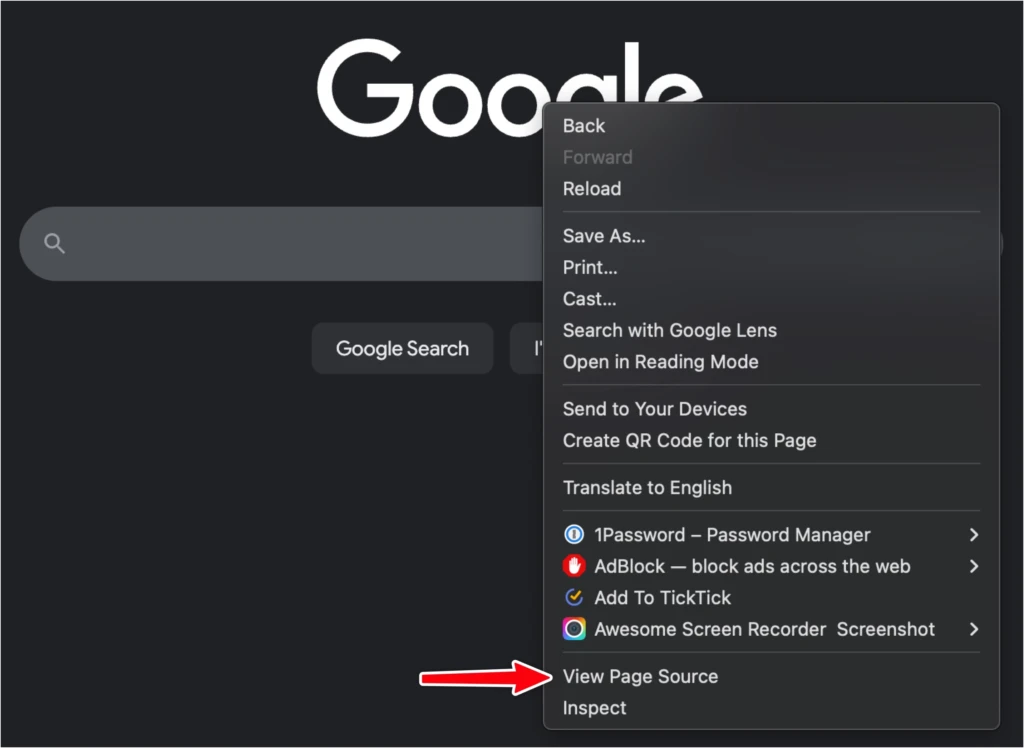
If you’re curious about existing sites, you can right‑click on any web page in your browser and choose “View Page Source” to see the full markup.
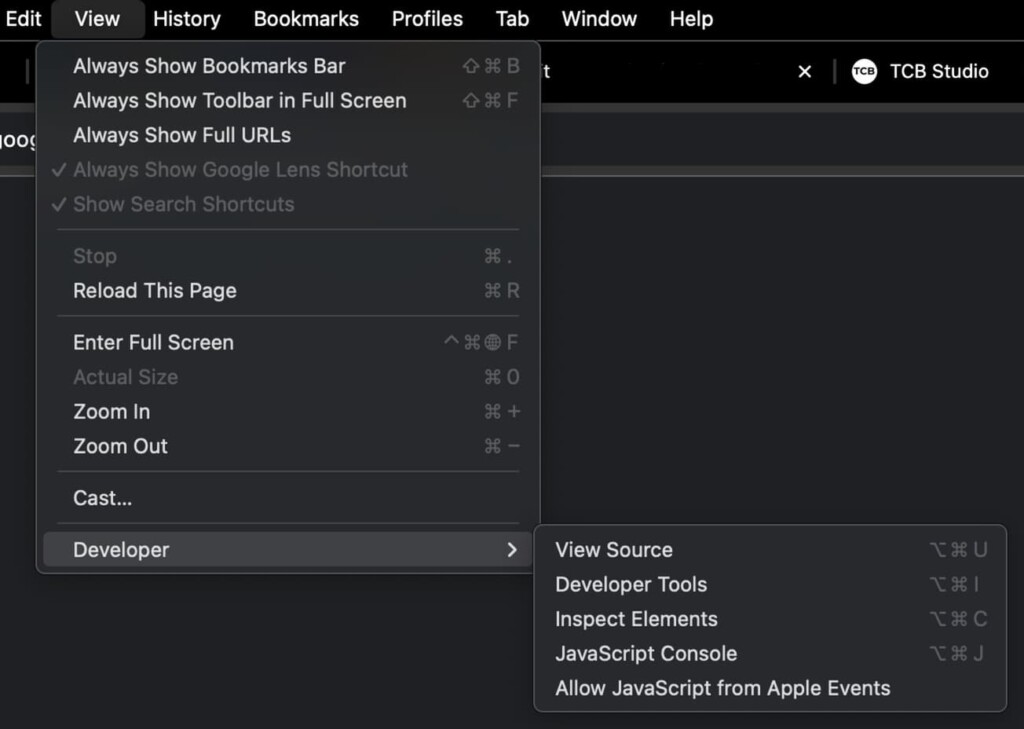
If you’re using Chrome on a Mac, you can use this menu:
- View
- Developer
- View Source (Opt+Cmd+U)
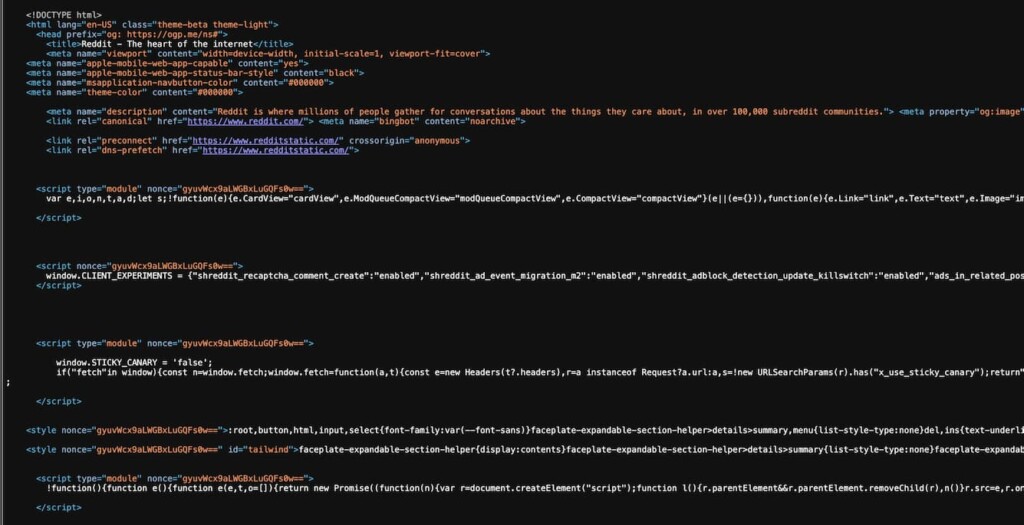
Once you open the page source, you’ll see the HTML and other code. For example, here’s what the Reddit homepage source code looks like:
However, please note that not all pages will appear in this structured format. For example, the Google homepage source code displays minified code that has been compressed to save space, so it’s hardly readable:
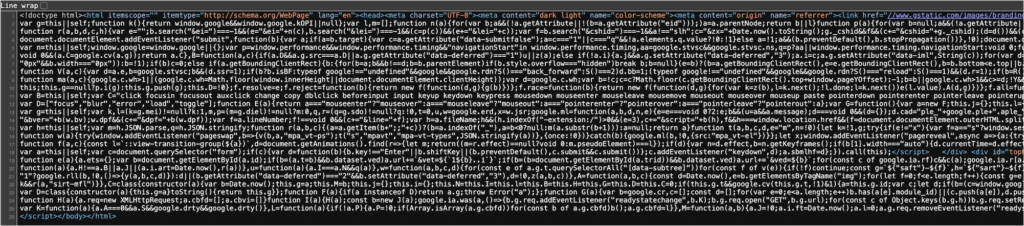
You can still explore the code, but you’ll need to rely on Cmd+F to search throughout the page.
For a more interactive approach, use developer tools (F12 or right‑click → Inspect) to highlight elements and see their corresponding HTML live as you hover over the page. This is one of the best ways to build intuition about how HTML works in practice.
Core HTML Elements
HTML comprises many elements, each with a distinct purpose. For a new learner, it’s key to understand not only the tag but also its purpose and common applications. The table below provides a structured overview of core elements.
| Category | Element(s) | Purpose / Description |
|---|---|---|
| Text Content | <h1> – <h6> | Headings create a hierarchy of titles. <h1> is the most important, <h6> the least. |
<p> | Defines a paragraph of text. | |
<ul>, <ol>, <li> | Create unordered (bullets) or ordered (numbered) lists with list items. | |
<a> | Creates a hyperlink to another page or resource. | |
<img> | Embeds an image into the page. Requires src for the file and alt for description. | |
| Document Structure | <header>, <nav>, <main>, <section>, <footer> | Provide semantic structure, telling browsers and search engines the role of each area of the page. |
<div> | Generic container for grouping content. Often styled with CSS. | |
<span> | An inline container for styling small portions of text. | |
| Forms and Input | <form> | Wraps input controls so data can be sent to a server. |
<input> | A versatile form field (text, checkbox, radio, etc.). | |
<textarea> | Allows multi-line text input. | |
<select> | Creates a dropdown list. | |
<button> | A clickable button, often for submitting forms. | |
| Media | <audio>, <video> | Embed audio or video players directly into the page. |
<canvas> | Provides a drawing area for graphics, often used with JavaScript. | |
<iframe> | Embeds another webpage or content inside the current page. |
HTML Attributes
HTML attributes provide extra information about elements. They live inside the opening tag and usually come in a name="value" pair. Attributes can change how an element behaves, provide accessibility details, or link it with CSS and JavaScript. Below are some of the most common attributes and their functions.
Common Attributes
Here’s a table that explains some of the most commonly used HTML attributes, their functions, and how they appear in practice.
| Attribute | Purpose / Description | Example |
|---|---|---|
| href (for links) | Add labels to elements. A class is reusable for styling multiple items with CSS. id should be unique and is often used for JavaScript targeting. | <a href="https://example.com">Visit Example</a> |
| src (for images/videos) | Points to the source file of an image, video, or script. | <img src="photo.jpg"> |
| alt (for images) | Provides alternative text for accessibility and SEO. Screen readers use this, and search engines read it. | <img src="photo.jpg" alt="A scenic landscape"> |
| class and id | Add labels to elements. A class can be reused to style multiple items with CSS. ID should be unique and is often used for JavaScript targeting. | <div class="highlight" id="intro">Hello!</div> |
| title | Adds extra information shown as a tooltip when hovering over the element. | <abbr title="Cascading Style Sheets">CSS</abbr> |
| Form attributes (name, value, placeholder, etc.) | Used on inputs and form fields to describe and send data. | <input type="text" name="username" placeholder="Enter your name"> |
Attributes in Action
Let’s start with a plain link tag:
<a>Click here</a>This by itself doesn’t do much because it has no destination. If you add the href attribute, it becomes functional:
<a href="<https://example.com>">Click here</a>We can continue to enhance it with additional attributes. We’ll add title for extra context when hovering, and a class attribute so that CSS can style it:
<a href="<https://example.com>" title="Go to Example website" class="btn">Click here</a>Now that same link:
- Knows where to go (
href). - Provides extra context to the user (
title). - Can be styled consistently across the site with CSS (
class).
This process demonstrates how attributes transform a bare tag into a useful, styled, and accessible piece of HTML that browsers and users can both understand. When developing pages, you’ll need to use the appropriate attributes to ensure elements are fully functional and accessible to users.
Best Practices for HTML
Using best practices ensures your HTML is accessible, maintainable, and search engine-friendly. Here are some key habits and tools to help you check your work and build well‑structured pages:
Use semantic elements
Prefer <header>, <main>, <footer>, <article>, and <section> instead of generic <div>s whenever possible. Semantic HTML improves accessibility and SEO by giving content meaning.
Accessibility first
Always add descriptive alt text to images, use proper heading hierarchy (<h1> → <h2> → <h3>), and label form elements with <label> for screen readers.
Organize and format
Keep your code clean, indented, and consistent. This makes it easier to maintain and reduces the likelihood of errors.
Validate and test
Don’t just rely on “if it’s broken, it’s obvious”. Use tools like these to check structure, accessibility, and performance:
Check in the browser
Use developer tools (F12 or right‑click → Inspect) to ensure elements are nested properly and behaving as expected.
Separate concerns
Keep content in HTML, presentation in CSS, and interactivity in JavaScript. This separation improves clarity and maintainability.
SEO considerations
Use only one <h1> per page that accurately describes the main topic. Include descriptive meta tags in the <head>, and structure content so Google and other search engines can easily interpret the page’s meaning.
Mobile‑friendly by default:
Ensure your document includes <meta name="viewport" content="width=device-width, initial-scale=1.0"> and that your layout adapts well to different screen sizes.
If you follow these practices and use validation tools, you’ll know more than just “does it look broken?” You’ll know whether your HTML is solid, accessible, and optimized for people and web crawlers.
Summary
HTML is the foundation of every web page. It provides the structure and meaning that browsers, search engines, and assistive technologies rely on. In this overview, we’ve looked at:
- What HTML is: the scaffolding of the web that organizes content.
- Why it matters: for accessibility, SEO, and universal compatibility.
- Basic structure: the elements that make up a valid HTML document.
- Core elements and attributes: how tags and their attributes define content and functionality.
- Best practices: writing clean, semantic, and accessible markup while validating your work with tools.
Mastering these basics should give you the confidence to understand and create web pages, naturally setting you up to build and maintain websites for your projects.