No products in the cart.
Notion databases are one of Notion’s most powerful features. Learning how to duplicate them helps you save time and reuse the setups you already know work well.
In this guide, you’ll see the different duplication options and the quick steps to make a copy of any database in your workspace.
Duplication Options
You can duplicate databases in two ways:
| Function | Keyboard Shortcut | Description |
|---|---|---|
| Duplicate with content | Cmd + D | Creates a copy that includes all current data. |
| Duplicate without content | Cmd + Shift + D | Creates an empty copy with just the structure. |
Both options are useful:
- Use without content if you just want a fresh database with the same properties.
- Use with content if you want to copy data and keep the same structure.
Process
Follow these steps to duplicate a database in Notion:
1. Open the database
Navigate to the database you want to duplicate in Notion.
Tip: To do this quickly, use Cmd+K to search your workspace for the database.
2. Duplicate the database
Click the three dots (…) menu in the top-right corner.

Select “Duplicate” and choose the option you prefer.
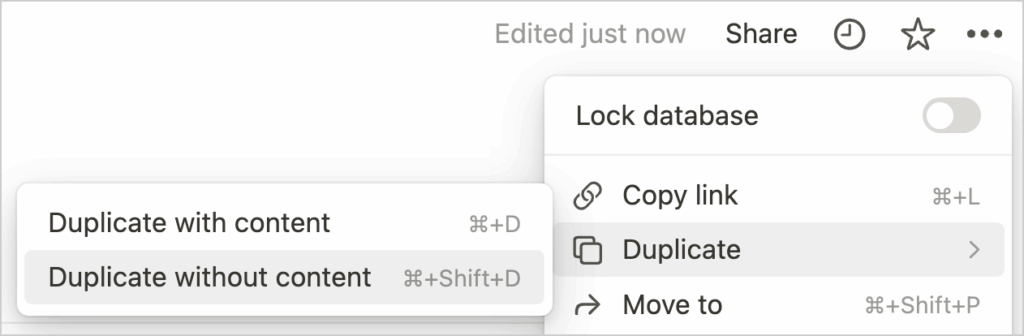
The right method will depend on what you want to accomplish:
- Duplicate with content: To copy over existing data
- Duplicate without content: To create an empty database
3. Customize your copy
Once duplicated, you can move the new database to any page in your workspace. Feel free to rename it, adjust properties, or use it as a template for future projects.
Once you choose an option, Notion should duplicate the database for you. Then, you can move the database wherever you’d like in your workspace and customize it.
Bottom Line
Duplicating databases in Notion is a small but powerful trick. It saves time, lets you reuse layouts that work, and provides room to experiment without compromising your original setup. Duplication is useful for managing projects, tracking tasks, and building custom systems, helping you scale your workflow more quickly.